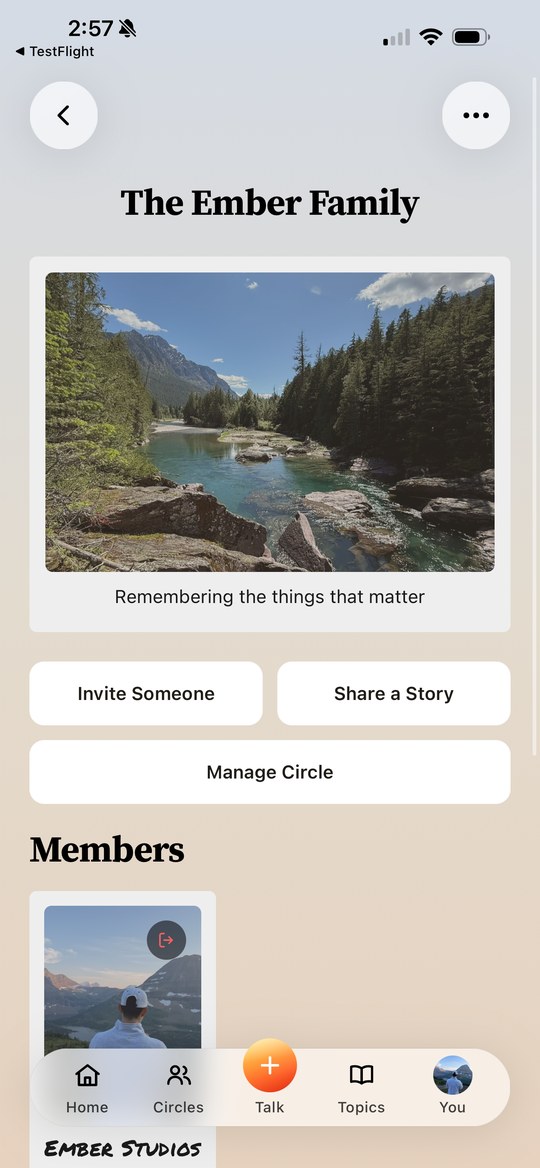
Inviting your Family & Friends
Learn how to invite people into your Ember circles and track their status.
This guide covers how to invite your friends and family members to join your Ember circles.
First, go to the People page. You can get there by clicking your avatar icon in the far top right of the app, or by going to the home page and clicking People.
You'll see a few clickable cards. One is your Primary Family, which is a shortcut to the circle you've designated as your primary family. This circle also shows up in your full circles list, and you can update your primary family at any time by clicking the Me card.
If you click the Circles card, you'll see all of your circles. Think of circles as both memberships to a club and folders for organizing memories specific to that group.
To invite someone into a circle, look for the Add Circle Member card. We recommend uploading a photo of the person, but it's optional. You can specify the person's relationship to you (like Mother, Father, Grandma) and hit next. Then fill out the person's details - not all fields are required, but the more you provide, the better the experience for the invitee.
Next, invite the person via phone or email. Once you click Send Invite, they'll receive a message in the channel you chose. If they use that link, they can log in and accept the invite to join your circle. If they sign up without the invite link, that's fine too - as long as you created the invite with their correct email or phone number, they'll be able to see it.
You can view pending invitations from the Circles page, and you'll see the status of your invites as a badge on each person's card.
If you have anyone who isn't great with technology and you'd like help onboarding them, reach out to us at contact@ember.build.