Managing your Circles
Learn how circles work to organize your memories and people.
This guide explains what Circles are and how to create and manage them.
Think of Circles in two ways. First, as a way to organize your memories, like folders. Each Circle represents a family or affiliation group, and every saved memory belongs to a circle. Second, Circles are like club memberships. Ember is meant to be a shared experience, so you can invite friends and family to different circles. People in the same circle who have an Ember account can access certain memories recorded and shared by anyone else in that circle.
Circles come in 3 types: Family (for family members), Affiliation (for groups like high school classmates, art clubs, work friends, or sports teams), and Self (your private memory vault — only you belong to it, and only you can access it unless you choose to publish and share).
There's also a Primary Family shortcut. If you belong to multiple family circles, you can set one as your primary for quick access in your settings.
When memories are saved, they belong to one Circle and cannot be transferred between circles. This is by design, for privacy and security reasons. You can belong to multiple circles, and multiple people can belong to multiple Circles.
Billing is circle-based. Our pricing model works a lot like a Spotify Family Plan.
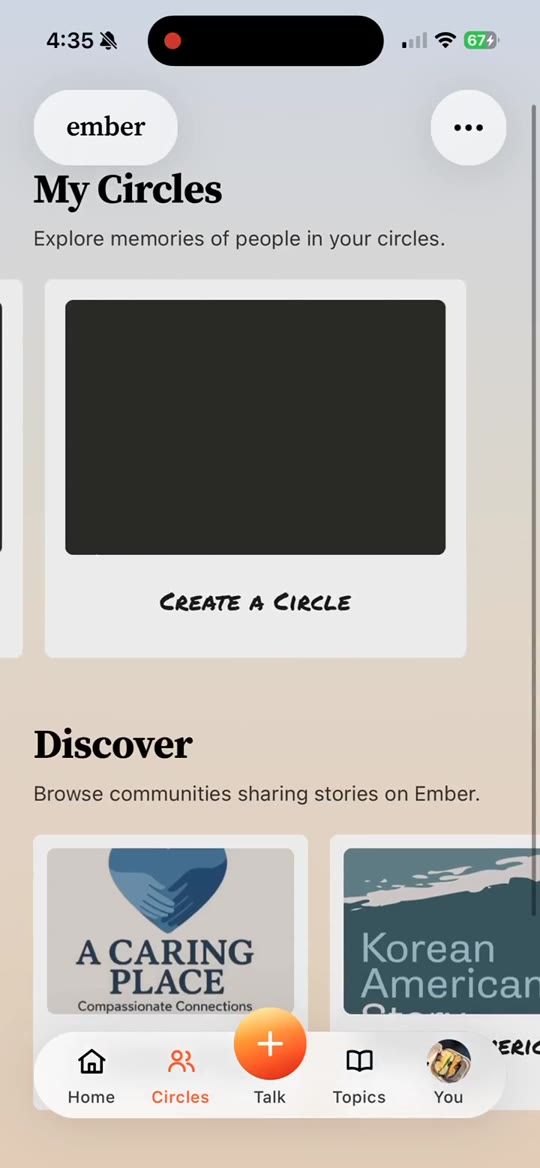
To view and manage your Circles, go to the People page and click the Circles card. You'll see all of your circles. If you're an admin, click Manage Details to update the Circle photo, name, or admins. You can also invite people and manage billing from here.
When navigating the app, you'll sometimes see an icon appear next to your profile icon in the top right. Clicking it lets you filter the page by circle. For example, you can filter the Talk page to show pending topic invites for certain circles only, or switch the Memories view to a different circle.
There are separate guides on how to invite people to circles and how to save memories to different circles.