Documentation How-to Guides

Browsing your Memories

Learn how to browse memories, switch timelines, and access the Memory Studio.

This guide covers how to browse and revisit your memories, and the things you can do with them.

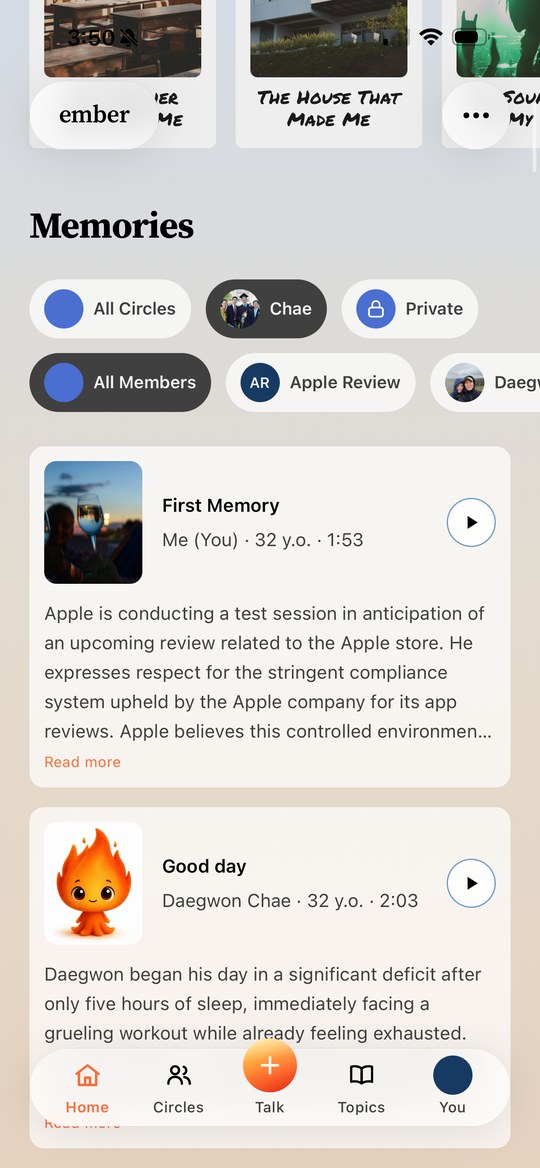
To browse memories, go to Memory Archives. Memories appear as clickable cards in a timeline you can scroll up or down. If you have more than one person in your circle, click someone's photo icon at the top to switch to their memories. You can also swipe left or right to switch your timeline view to someone else.

To view memories in different circles, look for the icon in the top right that expands when clicked so you can toggle between circles.

On the right of each memory card, you'll see clickable buttons. The play button lets you listen to the memory. At the bottom of Memory Archives, an audio player lets you play, pause, or fast forward a recording. Click the top of the audio player to collapse it, and click again to expand.

To delete a memory - maybe to re-record it or because the audio wasn't right - look for the trash can icon in the top right of a memory card. Click it and confirm, and the memory will be deleted in 7 days. You can undo this anytime by clicking Click to Keep.

Clicking into a memory card takes you to the Memory Studio. This is where you can view and add photos, or generate a written story from the memory. There are separate guides on adding photos and generating stories, but stories let you share memories from conversations with Ember in a beautiful, easy-to-read format.